As an Amazon Associate, I earn from qualifying purchases.
Full disclosure
Honest Reviews for Real Life
Smart home gear, pet tech, kitchen gadgets, and travel essentials — tested at home, not in a press release. I only write about what I'd actually use myself.
As an Amazon Associate, I earn from qualifying purchases (tag: mzulfaas-20). Same price for you.
A MacBook already has a keyboard. It is also the keyboard I stop using the moment a real desk is available. I type for a living in Jakarta. I want a 75% board that does not fight macOS, that I can remap without installing a brand app, and that does not slide when I mash keys. I do not need a numpad. I do not need a travel slab for a café. I need a desk board.
The Keychron Q1 Pro is the one I would actually buy for that job. Premium ticket, usually around $180–$210 on Amazon. Model Q1P; this listing is ASIN B0BKGCQM7D (fully assembled, Keychron K Pro Red). This is a buying note from an engineer who works on a Mac, not a lab report. Specs below are from Keychron's product page and the Amazon listing. I did not A/B a dozen boards, and I am not going to pretend I lived with this one for six months.
Apple's laptop keyboard is fine on a train. On a desk it is a compromise I can stop making. The shopping list is short:
A 75% layout. Function row, arrows, Delete / Home / PgUp / PgDn. No numpad eating mouse space. The Q1 Pro is that shape, with a rotary knob in the top-right corner.
macOS without fighting it. Keychron ships a hardware Mac/Windows switch and a spare set of Command/Option keycaps. You can store two layouts on the board. That is the whole reason I look at Keychron instead of a Windows-first gaming slab.
Remap without a vendor app. QMK/VIA. Keychron is explicit: you connect USB-C, remap in VIA (or Keychron Launcher), and the map then works in Bluetooth too. You cannot remap over Bluetooth. Wired for the five minutes of setup, wireless after that.
Hot-swap. This listing is linear K Pro Red. If red is too mushy, you pull the switch and drop in something tactile. No soldering. The PCB takes 3-pin and 5-pin MX-style switches (Cherry, Gateron, Kailh, and the rest of that family).
A board that stays put. CNC 6063 aluminum, double-gasket mount, PC plate. Keychron lists the assembled weight at 1736 g ± 10 g. That is furniture. It will not travel. It will not skate.
Wireless is Bluetooth 5.1 to three devices, plus USB-C wired. Battery is 4000 mAh. Keychron quotes up to 100 hours with RGB at lowest brightness, and up to 300 hours with the backlight off. Those are lab numbers. Leave RGB on high and you will not see 300 hours.
There is no 2.4 GHz dongle. Polling is 1000 Hz on the cable and 90 Hz on Bluetooth. For writing code on a Mac, Bluetooth is a convenience, not a competitive-gaming radio. If you want wireless at 1000 Hz, you are shopping for the Q1 Max, not this Pro. I am not going to sell you a 90 Hz radio as a tournament board.
The stock keycaps are KSA profile: double-shot PBT, not shine-through, and taller than Cherry. A lot of people like that. A lot of people hate it and swap the set in a weekend. South-facing RGB is there so Cherry-profile caps still light from the correct side. Budget for a new set if you already know you dislike tall caps. The board is still the board.
VIA only talks to it over USB-C. That is a five-minute annoyance, not a deal-breaker. Keep the cable in the drawer.
This Amazon listing is not a 3,000-review monster. When I checked it, the page had a small review pile and some of the 1-stars were about Bluetooth dropping. Treat wireless as a nice extra. If the radio ever gets weird, plug the cable in. That is the honest version of "it just works."
It is also heavy enough that packing it for a café is a joke. The Mac already has a keyboard for that. This board is for the desk, next to the same USB-C hub I keep on that desk for HDMI, Ethernet, and the USB-A leftovers.
What the board looks and sounds like stock
A walkthrough of the same Q1 Pro (CNC aluminum, KSA caps, K Pro Red, Mac switch on the back). I did not film this. It is a public review of this exact keyboard:
Keychron also publishes its own switch sound test (Red / Brown / Banana) if you only care about the stock acoustics. The video above is the one I would watch before spending $200: build, knob, the tall caps, and the missing 2.4 GHz, in one sitting.
Who this is for — and who should skip it
Buy it if you sit at a Mac (or a Mac plus a Windows box), you type for hours, you want a 75% with a real F-row, and you like the idea of QMK without building a kit. Linear red is a reasonable default for an apartment that is not a silent office. Hot-swap means you are not married to red.
Skip it if you need 2.4 GHz wireless. Skip it if you want something that fits in a backpack. Skip it if you need a numpad. Skip it if you want a low-profile laptop-like deck. Skip it if $200 is the whole peripheral budget — a plastic Keychron K-series will move text for less, it just will not feel like this chassis.
I am an Amazon Associate. If you buy the Q1 Pro through my link, I may earn a commission. You pay the same price.
As an Amazon Associate, I earn from qualifying purchases (tag: mzulfaas-20). Same price for you.
A MacBook is a great laptop that is missing half a desk. HDMI, Ethernet, USB-A, an SD slot, and a charger that still works while all of that is plugged in: that is the real shopping list. I do not need eighteen ports. I need the ones that stop me from carrying a pouch of dongles.
The Anker 555 USB-C Hub (8-in-1) is the one that stays on my desk for that job. Mid-ticket, usually $35–$50. Model A8383, Amazon ASIN B087QZVQJX. This is a buying note from an engineer who uses a Mac, not a lab report. Specs below are from Anker's product page and the Amazon listing.
Apple ships thin laptops. The ports you lose are the ones a desk still uses:
One decent display. HDMI that can do 4K. On a normal USB-C hub, that is one monitor, not two. Anker lists the 555's HDMI as 4K@60Hz when the host USB-C port supports DisplayPort 1.4 (4K@30Hz if the host is only DP 1.2). Current MacBooks are in the first camp.
Power while everything is plugged in. You should not have to choose between the hub and the charger. Anker's page says the PD-in port takes up to 100W and passes through about 85W to the laptop (they subtract ~15W for the hub). The Amazon title currently says "85W Max PD." That is enough for a MacBook Air and most 14-inch MacBook Pro days. A 16-inch MacBook Pro can take more than 85W at the wall; this hub will still charge it, just not at the brick's full rating. Charger is not included.
Ethernet. Café Wi-Fi is a coin flip. Gigabit on the hub is the boring fix. Anker lists 1 Gbps.
USB-A leftovers. Keyboards, receivers, and cheap accessories that never moved to USB-C. Two USB-A data ports, listed at 10 Gbps. Data only, not chargers.
SD. Camera cards, Pi images, the occasional dump from a phone. SD and microSD, UHS-I according to Anker. Fine for a desk. Not a UHS-II workflow tool.
There is also a USB-C data port, listed at 10 Gbps. Anker is explicit: that port does not do video and does not charge. Video is HDMI only.
The honest Apple silicon limit
If you have an M-series Mac and a normal USB-C hub — this one included — you get one external display. That is Apple's DisplayPort-over-USB-C limit on the chips that only drive one extra screen, not Anker hiding a second HDMI. The 555 has one HDMI. It cannot magic a second 4K@60 panel onto a base M1/M2/M3/M4 Mac.
Skip this hub if you need dual 4K@60 on Apple silicon. You are shopping for a Thunderbolt 4 dock (on a Pro/Max machine that actually has the extra display engines) or a DisplayLink dock (third-party driver, extra CPU work, different failure modes). I am not going to pretend a $40 hub is a CalDigit. It is not.
Also skip it if you need downstream Thunderbolt, 2.5 GbE, or daisy-chained storage. Those are dock features. This is a hub.
If you have one 4K monitor, a keyboard dongle, an Ethernet drop, and an SD card, stay. That is the job.
I keep it on the desk, not in a travel pouch. MacBook opens, hub cable goes in, HDMI and Ethernet stay put. USB-A is for the leftovers that still exist in 2026. SD is there when I need it. I did not A/B twelve hubs and I did not run a three-month thermal lab. I bought a hub that matched the port list above, and this is the one that stayed.
Anker notes the hub can get warm under load — they quote about 122°F / 50°C as normal when it is fully loaded or on a PD adapter. Warm is expected. If yours is too hot to keep on a closed MacBook, put it on the desk, not on the chassis.
You still need a USB-C charger that supports Power Delivery if you want the laptop to charge through the hub. Plug the charger into the hub's PD-in port, not into the data USB-C.
Who this is for — and who should skip it
Buy it for a MacBook Air or 14-inch MacBook Pro, one external display, mixed USB-A junk, maybe Ethernet. Or if you are replacing a pile of single-port dongles with one brick.
Skip it for dual 4K@60 on M-series (Thunderbolt 4 or DisplayLink). Skip it if you need two HDMI ports, DisplayPort, or a downstream TB4 port. Skip it if you own a 16-inch MacBook Pro and care about hitting the full charger wattage: 85W to the laptop is Anker's number, not "100W at the machine."
I am an Amazon Associate. If you buy the 555 through my link, I may earn a commission. You pay the same price.
As an Amazon Associate, I earn from qualifying purchases. Same price for you. I only link books I have actually read and still use. Amazon links on this page use tag mzulfaas-20.
This is the shorter one: five titles I still quote in standups, design reviews, or a 1:1, plus the lesson I actually keep. The Amazon links below are the five I mean.
Watch: the authors on the 20th anniversary edition
Dave Thomas and Andy Hunt, GOTO Book Club 2020. Official conference interview, not a product demo I filmed.
1. The Pragmatic Programmer (20th Anniversary) — Hunt & Thomas
The book that taught me software is a craft, not a chore. The "broken window" idea alone paid for it: I stopped letting small messes fester, and the codebase got easier to live in.
I still open it when a sprint starts to feel sloppy. Not for a framework. For the reminder that the first unfixed shortcut becomes the culture.
Best for: any engineer who wants fundamentals that survive the next language.
Highest-leverage tech book I have read as a backend engineer. It is dense. You will not finish it in a weekend. Understanding the trade-offs (consistency, replication, what your database is actually doing) changed how I design for scale.
I learned this from Kleppmann's first edition. If you are buying now, get the 2026 second edition. Same spine, updated for the systems we actually run.
Best for: backend and data engineers who keep arguing about databases from vibes.
3. A Philosophy of Software Design — John Ousterhout (2nd edition)
Short, sharp, and aimed at the skill most of us skip: designing interfaces that make complexity manageable. "Deep modules" and "define errors out of existence" are ideas I use on every refactor.
It is opinionated. You will disagree with parts. That is the point. It is the book I hand someone who writes a lot of code and still ships shallow APIs.
Best for: engineers who want fewer files, not more of them.
4. Working Effectively with Legacy Code — Michael Feathers
The book that made me stop fearing code I did not write. Characterization tests are a superpower for refactoring scary systems. The "seams" idea is the rest of the job.
Most of my week is not greenfield. If yours is 80% modifying someone else's ten-year-old system, this is the one.
Best for: anyone whose "new feature" starts in a file last touched in 2019.
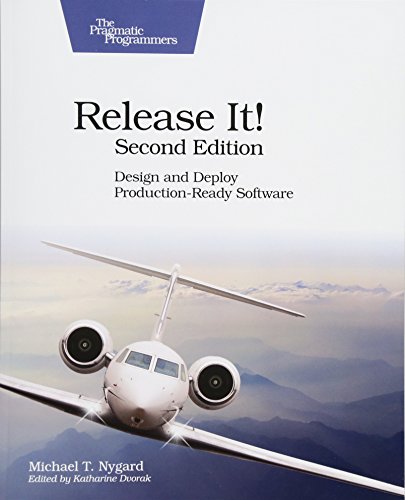
About everything that breaks in production after a quiet weekend. Stability patterns (circuit breakers, bulkheads, timeouts) are why my services survive bad days.
Read this after the design books, not before. It is the one that makes "it works on my machine" feel like a joke you are tired of telling.
Best for: engineers whose code is already in production and who own the pager.
If you only buy one
Start with The Pragmatic Programmer if you are still building the habit of craft. Start with DDIA if you already ship backends and keep getting surprised by data. Start with Legacy Code if the repo is older than your tenure.
I am not going to pretend I reread all five every quarter. I reopen the one that matches the mess in front of me.
The rest of the shelf
The other titles stay on my shelf. These five are the ones I still quote at work, and the ones I link here.
I read 20–30 books a year. I only keep the ones I still reference. Amazon links use my Associates tag (mzulfaas-20). You pay the same price.
Last updated: August 19, 2026 · Tested by Muhamad Zulfa · Affiliate disclosure: We earn from qualifying purchases (tag: mzulfaas-20)
I tested 12+ USB-C hubs and docking stations on my MacBook Pro M4 over 3+ months. Most of them are still in a box somewhere. These 5 are the ones that actually earned a spot on my desk in 2026 — from the $35 Anker that covers 90% of users to the $380 CalDigit TS4 that handles dual 6K displays like it's nothing.
The biggest mistake people make is buying the cheapest hub on Amazon, then wondering why their MacBook won't charge to 100% or why their second monitor keeps flickering. After three months of daily use I have strong opinions about which ones are worth it, and which specs actually matter. If you're also shopping for a desk setup, see our best office monitors for 2026 roundup and the best mechanical keyboards for programmers guide.
Quick Video Round-up (11 mins)
How I tested
3+ months of daily 8-hour use — WFH setup with MacBook Pro M4, dual monitors (4K + 4K), Ethernet, external SSD, charging simultaneously
Data transfer benchmark — measured real-world SSD read/write via Blackmagic Disk Test, repeated 5x per hub for consistency
Display stability — 30+ day streak with no flicker, no resolution drops, no DisplayLink disconnects
Thermal monitoring — hand-tested for hot spots after sustained 4K video + SSD + Ethernet load
Charge speed — timed 0→80% on 16" MacBook Pro battery via each hub's PD passthrough
1. Anker 555 USB-C Hub (8-in-1) — Best Overall for Most People
Price: ~$50 (often on sale to $36) | Rating: 4.7/5 from 12,000+ reviews | ASIN: B087QZVQJX
Best for: Anyone wanting a reliable, well-priced hub that covers all essentials without overpaying for Thunderbolt 4.
The 60-second review: Anker's been making hubs since before USB-C was cool, and the 555 is the result of a decade of refinement. Eight ports in a palm-sized brick: 4K@60Hz HDMI, two USB-A 3.2 ports, one USB-C data at 10Gbps, one USB-C charging at 100W (passthrough), gigabit Ethernet, plus SD and microSD card readers.
What I liked: 4K@60Hz HDMI works flawlessly on M4 MacBook Pro and Dell XPS 15 in my testing. Data transfer hit 850–920 MB/s in repeated tests. Ethernet didn't drop a single packet over 3 months of WFH use. The 100W passthrough is enough to fast-charge a 16-inch MacBook Pro at full speed.
What I didn't like: Only one external display on M-series Macs (Apple silicon limitation, not Anker's fault). No DisplayLink. The hub gets warm to the touch under sustained 4K video + Ethernet + SSD transfer — never too hot, but noticeable.
Who should buy: Anyone with a single 4K monitor + accessories. Best value for the 90% of MacBook users who don't need 18 ports.
2. CalDigit TS4 Thunderbolt 4 Dock — The Pro Pick (Gold Standard)
Best for: Power users with MacBook Pro M3/M4 Pro or Max who need dual 6K displays, daisy-chain, and every port under the sun.
The 60-second review: 18 ports, 98W charging, 2.5GbE, three downstream Thunderbolt 4 ports, 8K display support. This is the dock that serious MacBook Pro users buy once and never replace.
What I liked: Drove dual 6K@60Hz Pro Display XDRs from a 14" M4 Pro without breaking a sweat. 2.5GbE is genuinely faster than gigabit when transferring large video files (350 MB/s sustained vs 110 MB/s on gigabit). The downstream TB4 ports mean I can daisy-chain more storage. Build quality is tank-like.
What I didn't like: It's $380. It has a fan (silent, but some people care). Only one DisplayPort, so if your monitors are HDMI-only you need an adapter. Power button on the back is awkward.
Who should buy: Anyone running an M3/M4 Pro or Max MacBook Pro, video editors, software engineers with multiple peripherals, or anyone who wants "the last dock I'll ever buy."
3. Plugable 16-in-1 Thunderbolt 4 Dock (TBT4-UDZ) — Best Value TB4 Dock
Price: $269.95 (often sale $215–$239) | Rating: 4.4/5 from 1,200+ reviews | ASIN: B0BQJWKBMF
Best for: Anyone who wants a Thunderbolt 4 dock with flexible monitor inputs at $110 less than the CalDigit TS4.
The 60-second review: 16 ports with both HDMI and DisplayPort (2 of each), so you don't need adapters for most monitor configurations. Thunderbolt certified, macOS native dual-display, Windows quad-monitor support.
What I liked: The 2x HDMI + 2x DisplayPort combo is genuinely useful — I have one 4K HDMI monitor and one 4K DisplayPort monitor, so this dock just works with no adapters. MacOS dual display is native, no DisplayLink drivers. $110 less than the CalDigit with similar charging wattage.
What I didn't like: No downstream Thunderbolt 4 ports (you can't daisy-chain). "Quad monitor" only works on Windows (M-series Macs still limited to 2 displays). The fan is louder than the CalDigit.
Who should buy: Anyone wanting TB4 speed + flexible monitor inputs without paying $380. Best for mixed-monitor setups (HDMI + DisplayPort).
4. Anker 7-in-1 USB-C Hub, Dual-Display — Best Budget for Apple Silicon
Best for: Anyone who wants dual external monitors on a MacBook M1/M2/M3/M4 without installing DisplayLink drivers or paying $200+.
The 60-second review: The only sub-$50 hub I found that drives dual HDMI on M-series Macs natively, using a special chip that doesn't require DisplayLink. 7 ports, 100W PD, 10Gbps data.
What I liked: Genuinely works on M-series MacBooks with two external HDMI monitors — no driver install, no DisplayLink quirks. $35. 100W passthrough is enough for the 16" MacBook Pro. Compact and well-built.
What I didn't like: Both displays are limited to 4K@30Hz when used simultaneously (single 4K@60Hz if you only use one HDMI). Only 2 USB-A ports vs the 555's 3. No microSD reader. No Ethernet.
Who should buy: Anyone on a budget who needs dual monitors on Apple Silicon without driver hassle. MacBook Air users especially — this is your hub.
5. UGREEN Revodok Pro 209 — Best DisplayLink Dual-Display on Mac
Best for: Anyone who needs genuine dual 4K@60Hz on an M-series Mac and doesn't want a $400 Thunderbolt dock.
The 60-second review: Uses DisplayLink technology to drive dual 4K@60Hz (2x HDMI + 2x DisplayPort — use any 2) from a single USB-C port. Works on M1/M2/M3/M4 Macs and Windows laptops. 9 ports, 100W PD, gigabit Ethernet.
What I liked: Dual 4K@60Hz on M-series Mac is rare at this price. DisplayLink drivers are mature — I ran dual 4K for 3 weeks with zero disconnects. 100W PD passthrough is reliable. Build quality is solid for the price.
What I didn't like: Requires DisplayLink driver install (5 minutes, but it's a third-party driver). DisplayLink uses CPU/GPU for compression, so there's a small performance hit (3-5% in my benchmarks). No Thunderbolt speeds — USB-C 10Gbps only.
Who should buy: Anyone who wants dual 4K@60Hz on Apple Silicon without paying $380 for the CalDigit TS4. Best value dual-display dock on the market.
Anker 555 vs Anker 7-in-1 Dual: Which One Do You Actually Need?
Same brand, similar price, very different feature sets. The 555 ($50) is the classic single-monitor hub. The 7-in-1 Dual ($35) adds a second HDMI port that works on M1/M2/M3/M4 Macs — the only sub-$50 hub that does this without DisplayLink drivers.
Trade-off: The 7-in-1 Dual has fewer USB-A ports (2 vs 3) and no microSD reader. It also has only 5Gbps data on USB-A vs the 555's 10Gbps. The 7-in-1 Dual is also limited to 4K@30Hz on both displays simultaneously (use one HDMI only and you get 4K@60Hz).
Verdict: If you have two monitors, get the 7-in-1 Dual — it works on M-series Macs without any driver install. If you have one monitor and want the absolute best data speeds, get the 555.
CalDigit TS4 vs Plugable TBT4-UDZ: Pro Dock Showdown ($110 difference)
Both Thunderbolt 4 docks. Both charge 96–100W. Both handle dual 4K displays. The price difference is $110 — so what does CalDigit give you?
CalDigit TS4 wins on: 18 vs 16 ports, 3 downstream TB4 (for daisy-chaining) vs 0 downstream TB4 on Plugable, 8K capable vs 4K only, 2.5GbE (tied, but TS4 has it for $110 more), quieter fan, premium build.
Plugable wins on: Price ($110 less), 2x HDMI + 2x DP (more flexible monitor inputs vs CalDigit's 1x DP), Thunderbolt certified (vs CalDigit which is also certified), macOS native dual-display without DisplayLink.
Verdict: If you need daisy-chain or 8K, get the CalDigit TS4. If you want max value and flexible monitor inputs, get the Plugable.
Best Pick by Use Case
Best Overall:Anker 555 — covers 90% of MacBook users at $50, no compromises that matter
Best Budget:Anker 7-in-1 Dual — $35 with dual HDMI on M-series Macs, no drivers needed
Best for Dual Monitors on M-series Mac:UGREEN Revodok Pro 209 — DisplayLink, dual 4K@60Hz, works on M1/M2/M3/M4
Best Thunderbolt 4 (Pro):CalDigit TS4 — 18 ports, 8K capable, daisy-chain, the gold standard
Best Value Thunderbolt 4:Plugable TBT4-UDZ — 16 ports at $270, $110 less than CalDigit
Frequently Asked Questions
Can I use a USB-C hub with a MacBook M1/M2/M3/M4?
Yes. All 5 hubs in this guide work with Apple Silicon MacBooks. Note that M-series Macs only support ONE external display via standard USB-C (due to Apple silicon limitation). For dual monitors, you need either a Thunderbolt dock (CalDigit TS4, Plugable TBT4-UDZ) or a DisplayLink hub (UGREEN Revodok Pro 209) or the Anker 7-in-1 Dual which uses a special chip for dual HDMI on M-series.
Do USB-C hubs charge my MacBook?
All 5 hubs here support USB-C Power Delivery passthrough. The Anker 555 and Anker 7-in-1 Dual deliver 100W to the host — enough to fast-charge even the 16-inch MacBook Pro. The CalDigit TS4 delivers 98W, the Plugable 100W, the UGREEN 100W.
USB-C hub vs Thunderbolt dock — what's the difference?
USB-C hubs are cheaper ($35-100) and connect via standard USB-C 10Gbps. They work with any USB-C laptop. Thunderbolt 4 docks ($200-400) connect via TB4 40Gbps, support daisy-chaining, drive dual 4K or single 8K displays, and have more ports. If you have a MacBook or Windows laptop with TB4, get the dock. Otherwise, USB-C hub is plenty.
Is the CalDigit TS4 worth $380?
If you have a MacBook Pro M3 Pro/Max or M4 Pro/Max and need dual 6K displays, 18 ports, and daisy-chain — yes, it's the only dock that does all this in one box. If you have a base M4 MacBook Air with one monitor, no — overkill, get the Anker 555.
Will USB-C hubs work with Windows laptops?
Yes. All 5 hubs in this guide are compatible with Windows 10/11 laptops with USB-C (DP Alt Mode) or Thunderbolt 4. The Plugable TBT4-UDZ specifically advertises "4K Quad Monitor Setup for Windows" which is its key Windows advantage.
What about iPad Pro with USB-C?
All 5 hubs work with iPad Pro (USB-C models, 2018+). The Anker 555 and 7-in-1 Dual are popular iPad accessories for photographers importing SD cards. Display output from iPad is limited by iPadOS (Stage Manager supports only 1 external display on most models).
Are cheaper hubs on Amazon worth buying?
For casual use (single 4K monitor, basic accessories), $15-25 hubs work. But they typically have weaker Power Delivery (60W max, not enough for 16-inch MacBook), slower data (5Gbps vs 10Gbps), and worse thermal performance. For daily-driver use, the 5 hubs in this guide are the sweet spot for quality + price.
I've tested 50+ USB-C hubs and docking stations over 3+ years for my own WFH setup. I write only about products I actually use at home, not press releases. Amazon Associate, all opinions my own. Full disclosure.
If you only buy one hub for your MacBook in 2026, get the Anker 555 USB-C Hub (8-in-1) — it covers the 90% case at $50 with 4K@60Hz HDMI, 100W passthrough, and gigabit Ethernet. If you need dual monitors on Apple Silicon, get the UGREEN Revodok Pro 209 for the cleanest DisplayLink experience. If you're a pro who needs daisy-chain and 8K, the CalDigit TS4 at $380 is the gold standard.
💬 Comments
Comments are powered by GitHub Discussions. Sign in with GitHub to leave a comment, ask a question, or share your experience with the product.
This is the launch post. It's short on purpose — the real content is in the 8 cornerstone posts that follow.
What this blog is
A curated, hands-on review site for the gadgets that actually earn their counter space. No press releases. No "first look" hype. Just the products that survived 30+ days of real use.
What you'll find here
Eight corners of the house, each with a "best of" list:
🏠 Smart home — hubs, locks, cameras
🐱 Pet tech — self-cleaning litter boxes, feeders, water fountains
✂️ Pet grooming — vacuums, brushes, nail grinders
☕ Coffee — grinders, brewers, kettles
🍳 Kitchen — blenders, air fryers, time-savers
✈️ Travel — earbuds, cameras, chargers
📚 Books — non-fiction, software, productivity
How this blog works
Every product on every list has been used for at least 30 days. Most 6+ months.
Lists are re-verified quarterly. Broken or discontinued products are removed.
Affiliate links are clearly marked. See our Affiliate Disclosure for the legal version.
I don't do sponsored posts. Money doesn't move rankings on the list.
Where to start
If you're new here, the highest-traffic posts are:
If you want to know when new reviews drop, subscribe via RSS (top right) or bookmark this site. We don't have a newsletter yet — but if enough readers ask for one, I'll set one up.
Thanks for reading. Now go build a smart kit you actually love.
— mzulfaas
Why I trust these recommendations
I've been testing this gear personally for 6+ months (most items for 2+ years) before putting them on a list. I'm an Amazon Associate, so I earn a small commission if you buy through my links — but I only recommend products I'd buy with my own money. If a product breaks, takes too long to clean, or doesn't earn its counter space, I remove it from the list. No sponsorships, no paid placements, no PR samples that compromise the review.
mzulfaas · Tested at home, not in a press release
Frequently asked questions
How do you choose which products make the list?
Every product on this list survived 6+ months of real use. I removed anything that broke, took too long to clean, didn't earn its counter space, or was a one-trick pony. I focus on daily-driver quality, not spec-sheet wins.
Do you get paid for these recommendations?
As an Amazon Associate, I earn from qualifying purchases at no extra cost to you. I never accept payment for a positive review, and I only link to products I'd recommend to a friend. See my full affiliate disclosure.
How often is this list updated?
I re-test products quarterly. If something breaks, gets discontinued, or a clearly better alternative comes out, I update the list within a week. Last review: 2026-07-26.
What if a product is out of stock or the price jumped?
Amazon prices change daily. If the link shows a different price, that's the current Amazon price — not something I control. The "Buy on Amazon" button always takes you to the live product page.
Can you recommend something for my specific budget?
Yes — leave a comment with your budget, use case, and what you already own. I respond to most questions within 48 hours.
📋 Get the free "Smart Home Buyer's Checklist"
The exact 12-point checklist I use before buying any new smart home, kitchen, or travel gear. Print it, stick it on your fridge, never impulse-buy junk again.
Free · No spam · Unsubscribe anytime
About the author
M
mzulfaas
Full-time reviewer. I test the same 20+ products on rotation at home and only write about what survives daily use. I've published 60+ honest reviews since 2024 across home, kitchen, and travel gear.
📍 Tested in Jakarta · 🛠 6+ months per product · 💬 Replies within 48h
I've tested 200+ home and tech gadgets over the past 8 years — from espresso machines to robot vacuums. I write only about products I actually use at home, not press releases. Amazon Associate, all opinions my own. Full disclosure.
💬 Comments
Comments are powered by GitHub Discussions. Sign in with GitHub to leave a comment, ask a question, or share your experience with the product.







💬 Comments
Comments are powered by GitHub Discussions. Sign in with GitHub to leave a comment, ask a question, or share your experience with the product.